Skip to content
Extranet

How to view property reservation information via Lignum?

Updated on 29th July 2025

Staying on top of your latest reservations as a property manager is a key to providing excellent service and making sure your guests have a delighted stay. The good news is, you can effortlessly manage this by regularly checking the reservation right from the Lignum by tiket.com (Extranet) app.

To get started, make sure you are already registered as an Administrator or Reservation user. Then, explore your reservation data by following these steps:

  1. Open the Lignum by tiket.com (Extranet) app and log in using your registered email and password.
  2. Upon successful log in, tap the Reservations menu at the bottom of the main dashboard.
  3. The app will display a page with Check-In and Booking tabs that you can switch between.
  4. Select the specific date you wish to check and the relevant guests list will instantly appear on each tab. 
  5. You can also review today’s check-ins and new bookings.

For a broader overview, check your property check-in and booking information for any longer period through these steps: 

  1. Tap the month menu in the top-left corner of the page.
  2. Choose the Start Date and End Date. Tap Save button to confirm the selected period.
  3. You will find the full list of guests within Check-In or Bookings tab for that entire specified period.

Only have a guest’s name or Itinerary ID? Use the search icon in the top-right corner of the page to easily find bookings by guest name or Itinerary ID.

Next, you can view booking details by clicking on each booking list. You will discover comprehensive guest contact information, check-in & check-out schedules, room information, any special guest requests, cancellation policies, and payment details within each booking list. 

With the Lignum by tiket.com (Extranet) app, monitoring the check-in and booking data with all necessary details is no longer a complicated task. Now it’s time to take a quick and optimal action to elevate your guests’ stay experience.

Download the app now via the link below, then monitor your property’s reservation anywhere, anytime.

Lignum by tiket.com (Extranet) on iOS / Android

How do I confirm guest special requests via email?

Updated on 18th July 2025

This tutorial was created based on guest special request approval using the Gmail desktop website.

Did you know that guests can write special requests when booking an accommodation, such as early check-in, non-smoking rooms, or specific bed types? Of course, these special requests are subject to availability at the property. Therefore, it’s important for properties to respond to every special request quickly and clearly to provide a great stay experience for guests.

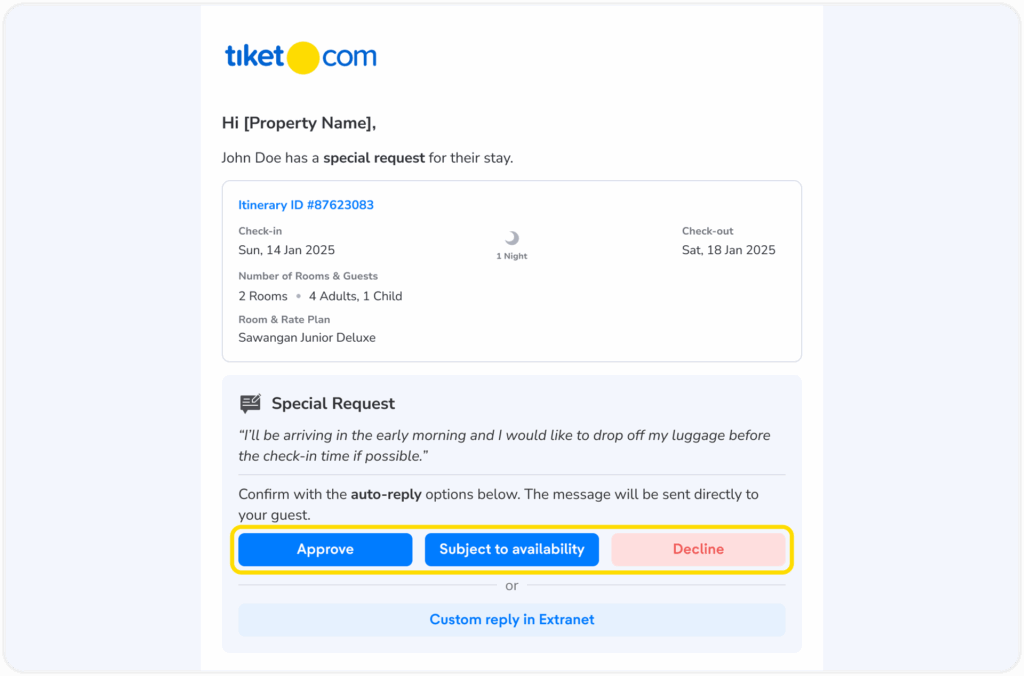
Now, you can confirm guest special requests easily via email. If you are registered as a reservation or administrator role in Extranet, you will receive an email every time a guest makes a new booking with a special request or edit a special request from their booking.

Here is the detailed information you will receive via email regarding guest special requests:

  • Itinerary ID
  • Check-in and Check-out Dates
  • Guest Name
  • Total Rooms and Length of Stay
  • Room Name and Rate Plan
  • Guest Special Requests

You can confirm guest requests easily and quickly through the automatic reply button options:

  • Approve: the property approves the guest’s special request
  • Subject to Availability: the property will try their best to fulfill the guest’s special request, but it is not guaranteed
  • Decline: the property declines the guest’s special request

When you select an automatic reply button, guests will receive your reply via the Chat feature in their Inbox in a pre-made template. The reply template consists of brief information regarding the response you selected.

Additionally, you can also reply to guest requests directly through the Chat feature in Extranet by clicking the Custom Reply in Extranet button below the automatic reply buttons. Please note that this custom reply feature is only available for properties that have activated the Chat feature and is limited to selected bookings.

What is the Opportunity Center and how do I use it?

Updated on 17th September 2025

The Opportunity Center is an Extranet’s feature to help you identify and resolve any issues that might be preventing you from reaching your full potential. It provides a clear list of tasks you can complete to improve your availability and secure more bookings.

On the Opportunity Center page, you will find a list of tasks grouped into two main categories: Availability and Price Competitiveness.

Availability

This section is specifically designed to highlight the tasks you need to complete to maximize your sales potential by providing a more depth and variety of availability to offer. Ultimately, this helps improve rate plan options in searches and capture more bookings. The tasks are broken down into five categories:

  1. Essential Setup to Go Live
    The tasks in this category are the basic setup you need to complete. This ensures that your rooms are active, rate plans are properly set up, and everything is connected so your property is bookable.
  2. Unavailable Dates
    This category highlights periods when your property is completely unavailable for bookings by guests searching for a room for 2 adults for one night (the most popular search criteria among tiket.com users). You can also check the potential reasons for this unavailability and take steps to fix them.
  3. Potential Availability Issues
    This category helps you identify and resolve issues that could be affecting your availability, such as expired rate plans or problems with your Channel Manager and Switcher (if you are using one to manage your rates and availability).
  4. Room and Rate Plan Settings
    This category helps you maximize bookings by adding more variety to your rate plans. Start with offering Room Only and Breakfast rate plans. Then, add refundable and non-refundable options for both. Finally, ensure that all rate plans are connected to every available room at your property.
  5. Children Policy
    This section highlights opportunities related to children’s settings at your property. If the current setup shows that children are not allowed, you’ll find a task encouraging you to review this policy. Allowing children and setting up children’s rate plans can help attract more family travelers and open up additional booking potential.

Price Competitiveness

Unlike the Availability section, this part helps you ensure your property’s pricing remains competitive. We compare your prices against other properties in your competitive set.

To keep your prices competitive, there are 3 main areas to focus on, each with its own list of tasks:

  1. Price Competitiveness Issues
    Activate the Competitive Set feature so the system can automatically analyze your price performance. Your performance is considered competitive if it meets the following two targets, based on data from the last 7 days.
    • Price Target: Your average daily room rate is no more than 5% higher than the competitive set average.
    • Sales Target: Your total room nights sold are no more than 10% lower than your competitors.

If one of both of these targets are not met, a task for improvement will automatically appear on your page. We recommend adjusting the rate plan for your highest-selling room and participating in relevant promotions, campaigns, or loyalty programs. The system requires several days to process these changes and evaluate performance. This task will be resolved automatically once your metrics are aligned with the set targets.

  1. Promo & Campaign Optimization
    Increase your sales by joining various promotional programs. Here, you can monitor and activate strategies such as:
    • Early Bird Promos
    • Value-Added Promos (e.g., free breakfast)
    • Cross-Sell Promos (offering other products)
    • Special Corporate and Affiliate Rates
    • Static Rate Plan: Contact your Market Manager to set up a long-term fixed rate.
  2. Participation & Program Engagement
    Build guest loyalty and attract premium customers by participating in special member-only programs. The main focus is on:
    • Exclusive Private Deals
    • Blibli Tiket Rewards

Each task comes with helpful buttons to help you solve the issue. After completing a task, simply click the Refresh status icon at the top left corner of the page to track your progress.  We will also send you a weekly email reminder of any outstanding tasks, so you will never miss an opportunity!

What is Extranet?

Updated on 28th February 2025

This tutorial was created based on the tiket.com Extranet’s desktop version.

Extranet is the main dashboard to manage most aspects of your property. Its main purpose is to help you optimize your property’s sales through informative content, competitive rates, and availability. It also includes menus and sections specifically designed to make managing your property needs simple and efficient.

Extranet Homepage

The homepage is designed to provide key information to help you manage your property effectively. Here’s what you’ll find:

  • Opportunity Center: A set of recommendations to complete for optimizing the availability and increasing bookings.
  • Property Performance: A summary of your property’s performance within the last 30 days.
  • Announcement Banner: Updates on promos, campaigns, and tips to optimize your sales.
  • Easy Join Promo & Campaign: Easily join on-going promos and campaigns to maximize your sales potential.

Main Menus

In addition to the information on the homepage, you’ll find menus that provide direct access to specific pages, making property management easier. These menus include:

  • Property menu:
    • Access and complete all the necessary information including facilities, descriptions, and photos to ensure your property stands out and attracts more bookings.
  • Rates & Availability menu:
    • Set your room rates and manage availability.
  • Promo & Campaign menu:
    • Join ongoing promos and campaigns to attract more bookings.
  • Bookings menu:
    • View and manage all your bookings in one place.
  • Opportunity Center menu:
    • Allows you to identify and resolve any issues that may be preventing you from reaching your full potential by completing a list of tasks, including room and rate plan settings, unavailable dates, potential availability issues, general policies, and children policies.
  • Chat menu:
    • Respond to guests’ chats and give the best experience.
  • Analytics menu:
    • Monitor your property’s performance with comprehensive sales data from the last 30 days, including daily average rates, net revenue, bookings, and room nights. Use this information to evaluate your sales strategy and plan your next steps.

Use the menus available based on your needs. Start optimizing your property now! Explore Extranet and find the features that will help you increase exposure and revenue.

Access Credentials Policy

Updated on 13th February 2025

I hereby consent to the creation/activation and use of the access credentials (i.e. password and personal identification number (PIN Code)) for the access for the system. I understand that the password and/or PIN code is unique and confidential. I hereby agree to:

  1. Keep my access credentials secure and will not disclose it to any unauthorized persons.
  2. Immediately notify tiket.com in the event of suspected unauthorized access to my access credentials.
  3. Take full responsibility for any actions taken regarding the use of my access credentials, including any activities conducted by myself or others who may have access to it.
  4. Hold harmless tiket.com for any liability and losses incurred due to any misuse or unauthorized access resulting from my actions, and that I assume all risks associated with such misuse.

How do I add taxpayer ID details on the Extranet?

Updated on 8th October 2024

In accordance with the applicable regulations, every Online Travel Agent (OTA) operating in Indonesia is obligated to pay taxes on the commission fees for every service provided. Therefore, we require all domestic properties to add their Taxpayer Identification Number (NPWP) details on the Extranet. This requirement applies to all properties in Indonesia, for both individually or corporate owned properties.

Here is how to add your property’s taxpayer ID details on the Extranet:

  1. Click on the Finance menu, then select Taxpayer ID (NPWP)
  2. Select the taxpayer ID type; Personal NPWP or Corporate NPWP
    If the property is individually owned without a separate NPWP, you can select Personal NPWP
    If the property is owned by a limited liability company (PT), you can select Corporate NPWP
  3. If you select the Personal NPWP, please complete the following data:
    1. Your personal taxpayer ID or National Identity Number (NIK)
    2. Your full name
    3. Taxpayer ID/National ID document
  4. If you select the Corporate NPWP, please complete the following data:
    1. The Corporate taxpayer ID
    2. Full name as stated on the Corporate taxpayer ID
    3. Corporate taxpayer ID document
    4. Other supporting documents such as Business Activity Place Identification Number (NITKU), etc. (if any)
  5. Double-check the uploaded data and ensure you have read and agreed to the terms and conditions before checking the box provided
  6. Click the Save button to save the changes

By completing the taxpayer data on the Extranet, you are not only fulfilling your tax obligations as a hotelier, but also contributing to building tax compliance in Indonesia. Aside from that, accurate taxpayer data will facilitate the tax payment process and avoid potential problems in the future.

What is Min/Max Stay Through and how to use it?

Updated on 3rd October 2024

Min/Max Stay is a common term in the hospitality industry that refers to the minimum and maximum stay duration that a guest can book at a property.

Minimum Stay refers to the minimum stay duration that a guest can book at a property. For example, a property may implement a minimum booking of 2 nights during the high season. Maximum Stay refers to the maximum stay duration that a guest can book at a property. It is usually used to manage property availability or create special promotions.

Now you can set the minimum and maximum stay duration as a restriction using the Min/Max Stay Through feature. Unlike the Min/Max Length of Stay feature which also restricts the stay duration, Min/Max Stay Through not only looks at the total duration but also considers the minimum and maximum duration settings on all booking dates. For a clearer explanation, let’s take look at the following example.

A property sets its availability as follows: 

  • 1st January
    • Min Stay: 1 night
    • Max Stay: 3 nights
  • 2nd January
    • Min Stay: 3 nights
    • Max Stay: 4 nights

If a guest books for 2 nights and checks in on 1st January, then: 

  • With Min/Max Length of Stay, the property will be available for booking because the stay duration is greater than the Min Stay (1 night) on the arrival date. 
  • With Min/Max Stay Through, the property will not be available to book because the stay duration is less than the Min Stay (3 nights) on 2nd January.

So, the difference between the two is that Min/Max Length of Stay only considers the minimum and maximum duration settings on the arrival date. On the other hand, Min/Max Stay Through considers the minimum and maximum duration settings on all booking dates.

The Min/Max Stay Through restriction is only available for properties that use a switcher to manage their availability. You can set the Min/Max Stay Through restriction in your switcher. After setting the Min/Max Stay Through in the switcher, the data will be sent to tiket.com. You can see the Min/Max Stay Through data that you have set in the Extranet.

How to view Min/Max Stay Through on the Calendar view in the tiket.com Extranet: 

  1. Go to the Rates & Availability > Manage Rates & Availability menu 
  2. Click on the date you want to view 
  3. Click Set Restrictions & Cancellations of the rate plan you want to view in the pop-up menu 
  4. The Min/Max Stay Through data from the switcher will be displayed here

Aside from the Calendar view, you can also view Min/Max Stay Through using the List view:

  1. Go to the Rates & Availability > Manage Rates & Availability menu
  2. Click the List view mode in the upper right corner 
  3. Set the period you want to view by selecting the start and end date at the top of the page. We will display the upcoming one week by default
  4. Select the rate plan you want to view and scroll down to see the restrictions that apply to that specific rate plan 
  5. The Min/Max Stay Through data from the switcher will be displayed here

Why do I need to compare my property’s performance with competitors?

Updated on 26th February 2024

By understanding your competitors’ ADR and Room Nights, you can compare your property’s performance to theirs. This comparison will help you set the metrics to improve your property’s performance. Manage Competitive Set

How do I read the competitive set data?

Updated on 26th February 2024

The displayed Competitive Set data represents the average ADR or Room Nights from the properties you select. For example, if you select 10 properties for your Competitive Set, the displayed data will reflect the average performance metrics of those 10 properties.

Tell us more detail

0 / 250

Tell us more detail

0 / 250