Skip to content
Extranet

How do I set up a Rate Plan on the Extranet?

Updated on 30th December 2025

A rate plan on the Extranet is a pricing and booking condition setup that determines how your rooms are displayed to guests, for example: room-only rates, rates with breakfast, refundable, or non-refundable options.

To ensure your rooms can be sold on tiket.com, you will need to set up your rate plans on the Extranet first. In this section, you can define pricing and rate plan options for specific room types.

Log in to your Extranet account and follow the steps below:

  1. Go to the Rates & Availability menu
  2. Select the Rate Plan submenu
  3. Click Add New Rate Plan

A pop-up will appear where you can choose the type of rate plan you want to create:

  • Custom Rate Plan
  • Weekly Rate Plan (minimum stay of 7 nights)
  • Monthly Rate Plan (minimum stay of 28 nights)

The only difference lies in the minimum stay requirement, while the remaining fields remain the same. Choose the rate plan type that best fits your property’s needs.

Complete these details to create your rate plan:

  1. Rate Plan Name
  2. Length of Stay (minimum and maximum allowed for guests to book your property)
  3. Rate Plan Details
    1. Meals
      Select the type of meal package included: no meals, meals available, or all-inclusive.
    2. Linked Rooms
      Configure this option if the rate plan applies to rooms with a connecting-room setup.
    3. Cancellation Policy
      Specify whether the rate plan is non-refundable or uses a custom cancellation policy.
    4. Tariff Mode
      Choose the pricing method that fits your property’s setup.
    5. Booking Period
      Set the period when guests are allowed to book based on specific dates, days, and times.
    6. Stay Period
      Set the stay dates that can be booked based on specific dates, days, and times.
    7. Advanced booking
      Set the minimum and maximum gap period between the booking date and the guest’s check-in date.
    8. Blackout Dates
      Activate and configure this feature if the rate plan should not apply on certain dates. The maximum number of blackout dates you can set is 30 days per year.
  4. Price for Children
  5. Targeted User Settings
    You can choose to display the rate plan only to certain users based on:
    • Platform (Desktop, Mobile Web, Android, iOS)
    • Blibli Tiket Rewards Tier (Silver, Gold, Platinum, Diamond)
    • Targeted Location (Target by country/region or add exceptions)

Feel free to skip any optional fields. Once all information is complete, click Add New Rate Plan at the bottom of the page to save.

After saving, the rate plan will automatically become active and appear to guests as long as inventory is available and the dates are not within a blackout period. You can edit or remove rate plans at any time as needed.

How do I view logs for Rates & Availability and vendor updates?

Updated on 15th December 2025

Keeping track of your property’s updates is crucial for preventing overbookings and resolving daily operational discrepancies. The Rates & Availability Log allows you to audit every change made to your Availability, Rates, and Inventory (ARI) on the Extranet.

You can view the detailed activity log by following these steps:

  1. Login to your Extranet account
  2. Go to Rates and Availability menu
  3. Select Manage Rates & Availability submenu
  4. Find & click View Log button in the right-top corner of the page

This tool provides a detailed history of updates. Here is how the system handles data:

  • The log only saves changes when a value is actually modified. Updates that re-submit the same existing value are not stored.
  • Log data is only available starting from the date this feature was enabled. Data is retained for a maximum of 6 months past the guest’s stay date.
  • Logs can be searched using two search capabilities: Room & Rate Plan or Itinerary ID.
  • For properties with Channel Manager or Switcher, the log data includes API requests such as raw request log, echotoken, request & response time.

The system stores specific changes across these three categories:

  • Rates
    • Room based rate
    • Occupancy based rate
  • Allotment
    • Normal (Room Inventory & Room-Rate Inventory)
    • Softblock 
  • Restrictions
    • Close Out (Room, Room-Rate, and Softblock)
    • CTA (Closed to Arrival) & CTD (Closed to Departure) for room and room-rates.
    • Min-Max LOS (Length of Stay), Advance Booking windows, and Stay-Through restrictions for room and room-rates.

How to Search the Log?

  1. Search by Room & Rate Plan

Use this to view general activity for specific products over a specific time.

The system will return all ARI activity log data based on the criteria you select. You can narrow your search by specifying the room name, rate plan name, and stay period. Additionally, you can filter by specific data types (rates, allotment, or restrictions) and define a log period of up to 30 days before the checking date.

  1. Search by Itinerary ID

Use this to investigate changes related to a specific booking (past or future).

The system will return all ARI activity log data relevant to that specific booking. You can further refine the results by selecting the rate plan name and the specific data type (rates, allotment, or restrictions). The log period search window allows you to look back up to 30 days before the booking date.

What are the types of additional fees settings at Extranet?

Updated on 2nd October 2025

Implementing the right strategy for managing your property’s pricing is key to maximizing profit and providing attractive offers for every guest. To enable you implement the right pricing strategy, the tiket.com Extranet provides various features to set additional charges applicable at your property beyond the room’s nightly rate.

These are 4 types of additional charges you can set in the Extranet:

  1. Additional Fees for Extra Facilities (Add-ons)
    You can set additional charges for guests who want extra facilities, such as food, room complements, transportation, and activities, through the Add-ons menu. To use this feature, you first need to add the add-ons items. Learn more about how to set charges for add-ons in the related article.
  1. Additional Fees during High Season (Surcharge)
    You can also set additional charges that apply during high season, or holiday periods through the Rates & Availability > Surcharge menu. The additional fees set in this feature will be added automatically to the room rate during the specified period, making it easy for you to adjust room prices during high season. Find out how to set additional charges during high season in the related article.
  1. Additional Fees to be Paid at Check-in (Additional Fees at Check-in)
    If your property has additional fees that must be paid by guests at check-in, you can set them through the Finance > Additional Fees at Check-in menu. Some additional fees you can set in this menu include country tax, tourist tax, service fees, resort fees, etc. The fees you set in this menu are not included in the price paid by the guest when booking on tiket.com and will be charged at check-in. Read the following article to learn how to set additional fees at check-in.
  1. Taxes & Other Fees
    If you want to add the additional fees and taxes directly to the price paid by guests on tiket.com, you can set them through the Finance > Taxes & Other Fees menu. In this menu, you can also set which items are subject to tax as well as how the taxes are displayed on room rates on tiket.com. Find detailed information on how to set up taxes and other fees in the related article.

With the various options available, you now have full control to set additional charges that suit your property’s needs. This not only helps you optimize revenue but also provides better price transparency for guests from the beginning of their booking. Learn and try out all these features on your Extranet now to perfect your pricing strategy!

How do I receive the CVV code via email?

Updated on 1st October 2025

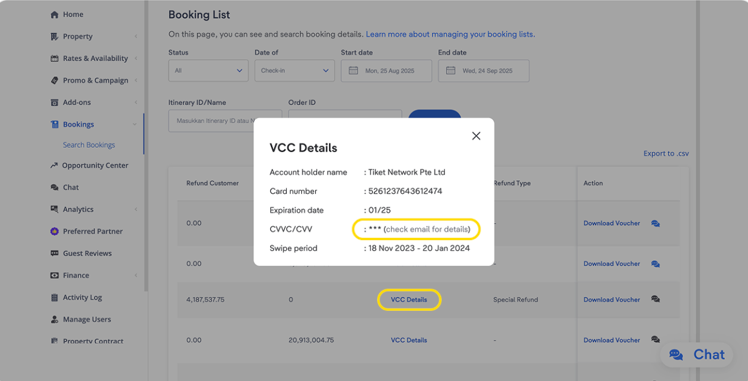
VCC Details display under Bookings menu in Extranet where the CVV code will be sent via email

This tutorial was created based on the Bookings menu on the tix.tiket.com website’s desktop version.

The security of your payment information is now further enhanced with the newly implemented CVV (Card Verification Value) delivery. If you are using VCC (Virtual Credit Card) as your payout method, the CVV will no longer be displayed on the Extranet. Instead, it will be sent directly to your email for every valid booking.

Aside from the CVV code, you can access other payment detail in the Bookings menu > Search Bookings submenu > VCC Details for every bookings, such as:

  • Account holder name
  • Card number
  • Expiration date
  • Swipe period

We will send the CVV code to the Finance and Administrator roles’ email addresses along with the booking voucher email once your property receives a confirmed booking. To ensure you can safely receive your CVV, take these 2 actions below:

  1. Make sure the Finance and Administrator role are properly registered in Manage Users menu; and
  2. Double-check that your notification status for both roles are enabled.

Accessing the CVV code via email

Once the previous steps are completed, you’ll receive an email every time your property receives a booking. The title of the email will be: “(Confidential) CVV details for Itinerary ID [Itinerary Number]

To view the CVV code, you need to download the attached document in the email. The document includes the Booking Details along with the Payment Details & CVV, allowing you to verify that the CVV can be used to charge the specific booking.

Booking Details include the following information:

  • Itinerary ID
  • Check-in & Check-out Date
  • Room & Rate Plan
  • Guest Name

Payment Details & CVV will show the information as below:

  • Payment Method
  • Card Number (available in the Extranet).
  • CVC/CVV
  • Card Holder Name
  • Expiration Date
  • Swipe Period

With this information, you will be able to use the CVV code to charge payment for the itinerary ID as specified in the attachment. 

Steps to take if the VCC has Expired

If your VCC has reached its expiration date, our finance team will issue you a new VCC and you will receive it in an email with the subject : “Updated CVV Information – Itinerary (Itinerary Number)”.

You will also need to download the attached document in this email to get the CVV code along with the following information:

  • Expiration date
  • CVV
  • Itinerary number
  • Security disclaimer

Receiving CVV via Channel Manager or Switcher

If you are managing your property through a Channel Manager or Switcher, your CVV code will be displayed directly on the Channel Manager or Switcher’s dashboard you are using. You can then use the CVV code to charge your payments.

Now, you have full control over how the CVV code is used. For the security of your payment information, we recommend keeping this code confidential and avoiding storing, printing, or sharing it.

This approach is designed to protect your payment information better. With your careful handling of each action and decision, together we can keep your transactions secure.

It’s time to confirm that the users with Finance and Administrator roles are registered and activate the notification in the Manage Users menu to receive CVV code via email.

What is a post-book score and how can I improve it?

Updated on 14th August 2025

Post-book score is a rating system that measures the quality of your property’s facilities and services after a guest has made a booking. This score is calculated based on the number of guest complaints (especially regarding check-in and facilities), your property’s response time to these complaints, and your overall review ratings.

Properties with a low post-book score will get a display warning on their property page, potentially impacting visibility. Additionally, these properties will receive weekly performance reports via email.

To help your property achieve a high post-book score and enhance guest satisfaction, here are the steps you can take:

  1. Respond to Guest Messages Quickly
  • Aim for a minimum chat response rate of 65% by replying to all guest inquiries through the Chat feature on your Extranet.
  • Respond to chats within 12 hours of the guest’s last message.
  • Always end chats with a closing message, as your response rate is calculated based on the last message sent from your property.
  1. Address guest complaints carefully
  • Ensure your property page displays accurate and up-to-date information (facilities, rooms, policies) to minimize complaints.
  • Review previous guest complaints and make sure they don’t reoccur.
  1. Stay responsive to the tiket.com Customer Care team’s messages
  • Respond to messages and calls from the tiket.com Customer Care team quickly to efficiently resolve guest issues.
  • Ensure your registered phone number and email on the Extranet are accurate and always active so the Customer Care team can easily reach you.

We understand that maintaining consistent performance can be challenging. However, these steps are crucial for ensuring guest satisfaction and maintaining your property’s reputation on tiket.com.

By following these guidelines, you’ll not only improve your property’s post-book score but also provide an unforgettable stay experience for every guest.

How do I set up room occupancy?

Updated on 14th August 2025

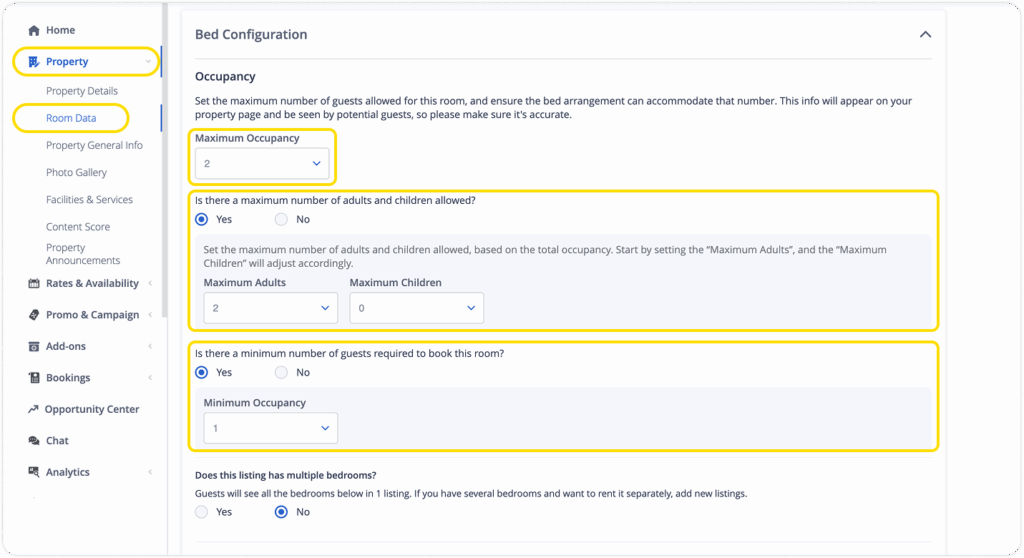
Room occupancy settings display in the room data section of tiket.com Extranet

This tutorial was created based on the Property menu on the tix.tiket.com website’s desktop version.

At tiket.com, we use occupancy to describe the guest capacity per room type or unit. It is crucial to understand how to set the occupancy correctly, because room occupancy can maximize your property’s visibility when tiket.com users are searching for accommodations.

To help you with this, we have provided various features in Extranet that you can use to set up your room occupancy easily, such as:

  • Maximum Occupancy sets the maximum number of guests that can stay in a room. This is based on the total number of guests, including both adults and children (if applicable) guests who can stay in that room
  • Maximum Adult Guests sets the maximum number of adults that can stay in a room. If your property only accepts adults, then the Maximum Adult Guests will be the same as the Maximum Occupancy
  • Maximum Children sets the maximum number of children that can stay in a room. This feature is perfect if your property welcomes families with children. Children must be accompanied by an adult, so the Maximum Children will always be less than the Maximum Occupancy
  • Minimum Occupancy sets the minimum number of guests required to book a room, such as a twin room that requires a minimum of 2 guests

To help you understand how these features work, let’s look at an example. Imagine your property has a standard room with a maximum capacity of 3 guests, and it allows 1 child guest to stay in the room. Based on this scenario, here are the correct occupancy settings for your room:

  • Maximum Occupancy: 3
  • Maximum Children: 1
  • Maximum Adult Guests: 3 (calculated based on the scenario if there are no children)

With these settings, your property will appear on the tiket.com Search Results Page if a user searches for:

  • 2 adults + 1 child
  • 1 adult + 1 child
  • 1, 2, or 3 adults without any children

However, your property will not appear on the Search Results Page if a user searches for:

  • 3 adults + 1 child, because the total number of guests is greater than the Maximum Occupancy
  • 2 adults + 2 children, because the number of children is greater than the Maximum Children

Here are the steps to set up room occupancy in the tiket.com Extranet:

  1. Go to the Room Data (Hotel) / Unit Data (Villas & Apts.) menu.
  2. Click the Edit icon to the right of the room type you want to change.
  3. Scroll down to the Bed Configuration > Occupancy section.
  4. Fill the Maximum Occupancy by selecting the value from the dropdown menu. You are required to fill in this field.
  5. If this room has a maximum number of adults and children allowed, you can select “Yes” and fill in the Maximum Adults and Maximum Children. You can also skip this setting by selecting “No.”
  6. If this room has a minimum number of guests required to book, you can select “Yes” and fill in the Minimum Occupancy. You can also skip this setting by selecting “No.”
  7. Scroll down and click the Edit Room button to save your changes.

By understanding and applying the correct occupancy settings in the tiket.com Extranet, you not only ensure your property information is accurate but also increase the chances of your property being discovered by potential guests. Maximize your property’s visibility by setting up your room occupancy now!

How do I set my property’s Default Rates & Allotment?

Updated on 11th February 2026

Managing your property’s availability just got a lot more reliable with the new Default Rates and Default Allotment features. They are powerful tools designed to act as your safety net, ensuring the rooms in your property remain available for bookings.

Default Rates is the room price that is set as default when daily prices have not been explicitly set. While Default Allotment is the number of rooms that is always available for bookings, unless you change it manually.

Often, rooms become unbookable because daily rates or allotments haven’t been updated, leading to unintentional inventory loss. This new feature provides an automatic fallback, helping you maintain consistent availability and capture early bird bookers.

Why use the Default Rates & Allotment?

  • Easy One-Time Setup: Configure your settings once via the Room Data or Rate Plan menu to keep your rooms available for booking.
  • Secure Advance Bookings: As hoteliers often only set inventory for three months ahead; default rates and allotment ensure your property is available to travelers booking further in advance.
  • Reduced Manual Work: The system automatically fills in gaps where price or allotment data is missing on certain dates.
  • Flexibility of Updates via Calendar: Manual update in the Manage Rates & Availability calendar menu is the highest priority and will automatically replace the default rates values. Simply use the edit feature in the calendar to adjust the data on specific dates according to your needs. 

How to Set Default Rates

You can set the default rate through the Rate Plan menu on the Extranet, here’s how to try this new feature:

  1. Open the Rate Plan menu
  2. Click + Add New Rate Plan or Set Now in the Linked Rooms column, and tick the room type you want to edit
  3. You will see the (Currency) Default Rate section next to each room name. Enter the standard rate you want the system to use when no specific daily rates are uploaded to ensure your room remains bookable

How to Set Default Allotment

You can set the default allotment through the Room Data menu on the Extranet, here’s how to try this new feature:

  1. Open the Room Data menu
  2. Click + Add New Room or Edit on an existing room
  3. Enable the Set Default Allotment toggle in the Number of Room section, and adjust the default allotment number for the selected room type at your property

Properties Using Switcher

For properties using Switcher, you can update the default rates and allotment through the Rate Plan menu, here’s how to try this new feature:

  1. Open the Rate Plan menu
  2. Click + Add New Rate Plan or Edit/Set Now on an existing room
  3. Select the room that will use the Default Rates and Allotment in the Linked Room section
  4. Enter the standard rate you want the system to use and adjust the default allotment number
  5. Click Edit Rate Plan to save the settings

Full Control via Calendar View

Once active, the system will automatically fill gaps in your calendar using these defaults. In your Calendar View, look for the badge “From your Default Allotment setting” or “From your Default Rates setting” to indicate the system is using your fallback values. 

  • If you need to change a price or allotment for a specific date, simply click edit on that date in the calendar and enter a new value
  • If you manually change a value but want to return to the default, you can click Reset to Default within the calendar edit tool.

Note: 

  • Any manual update you make in the calendar always takes priority over your default setting on either Room Data page or Rate Plan page. 
  • The default rate cannot be lower than the price threshold set in the Room Data.
  • Your default allotment cannot exceed the total number of actual rooms you have for the specific room type.

Ready to secure your future bookings? Log in to the Extranet and set your defaults today!

How do I manage additional fees at check-in?

Updated on 2nd October 2025

Setting up additional fees helps improve transparency, reduce manual workload, and prevent miscommunication between your property and guests. It also  allows properties to easily account for government-mandated local taxes or tourism taxes that customers often need to pay upon check-in, ensuring compliance with local regulations and accurate collection of all due amounts.

Follow these steps in the Extranet to configure your additional fees:

  1. Log in to the Extranet
  2. Navigate to the Finance menu
  3. Select Additional Fees at Check-In

On this page, you will find options to manage your fees:

  • Set new additional fees: Add new types of charges specific to your property
  • Turn status ON/OFF: Enable or disable the display of additional fees
  • Overwrite default settings: Adjust pre-configured options if needed

When setting or modifying an additional fee, you will need to provide the following details:

  • Fee type: Specify the nature of the charge (e.g., Local Tax, Tourist Tax, Resort Fee)
  • Charge type (choose one):
    • Per Guest: The fee applies to each guest
    • Per Room: The fee applies per room
  • Charge period type (choose one)
    • Per Night: The fee is charged for each night of the stay
    • Per Stay: The fee is a one-time charge for the entire stay
  • Amount calculation type:
    • Percentage: The fee is a percentage of a specified amount
    • Fixed Amount: The fee is a set monetary value
  • Amount: Enter the specific value (percentage or fixed amount) in your setup currency

Ensuring these fees are accurately set up helps provide guests with clear information, leading to a smoother check-in process and preventing potential disputes over payment amounts. Additionally, it’s necessary to regularly review your additional fee settings to ensure they align with your property’s policies and local regulations.

A few quick steps can make a big difference in streamlining your operations. Take action today!

How do I activate the Geo Rate promo feature on Extranet?

Updated on 12th August 2025

Geo Rate is a special feature that gives you flexibility to offer discounts for specific countries with high potential to drive more bookings to your property. Through this guide, tiket.com will walk you through setting up your Geo Rate promo step-by-step and activating your Geo Rate promo successfully.

Set the Geo Rate promo feature on Extranet

First, make sure you have logged in to Extranet. Select the Promo & Campaign menu, then click the Add New submenu. Under Promotions, choose Geo Rate feature in Targeted Promo section and continue your steps with these guide:

1. Set the targeted location

In this section, you can set your promo by continent or country level according to your needs. 

If you want to set the promo on the Continent level, you can select the continent(s) of which the promo will be applied from the dropdown menu. By selecting a continent, your promo will automatically apply to all countries in it. To exclude specific countries, click Add exceptions below the selected continent, then choose one or more countries to exclude them from the promo.

On the Country Level tab, you can choose one or multiple countries where the promo will be applied. 

2. Set the discount and minimum length of stay

Fill in the discount percentage and the minimum length of stay required for guests to get the promo.

3. Choose the platform where the promo appears

In this step, you can choose to offer the promo to users who are logged in or non-login users on various platforms. Simply tick the box where you would like your promo to appear in each section (Login and Non-Login), whether on desktop web, mobile web, Android, or iOS. 

4. Select room type and rate plan

Select one or more Room Types where you wish to include in your Geo Rate promo. Then, choose at least one Rate Plan for each chosen room type.

5. Set the applicable promo booking period

You can offer the Geo Rate promo anytime or for a certain booking period. If you want to set the promo for a certain booking period, choose Specific days and time. Then, you can select the Start and End dates, and also choose specific days and set the exact Start time and End time for the booking period. 

6. Manage the stay period for the promo

You can set the stay period applicable for the promo anytime or during Specific dates only. To set a specific stay period, simply choose Specific dates and set the Start date and End date. 

7. Choose your preference in Stack Promos menu

Easily manage how your Geo Rate promo works with other promotions by turning the toggle on or off. Each setting creates a different promo stacking scheme:

  1. Toggle On: You will combine Geo Rate promo with Regular Promo and also Targeted Promo (Cross-Selling Rate and Corporate & Affiliate Rate).
  2. Toggle Off: Geo Rate promo will still be combined with Regular Promo, without including the Targeted Promo.

8. Add Blackout Dates (optional)

You can add Blackout Dates up to 30 days per year by switching the toggle on. Select each blackout date by clicking on the calendar view and double-check your selected dates in the Selected blackout dates window on the right side

Lastly, make sure to review all settings and click the Create Promo button to save.

View, edit, or remove the promo

After creating your Geo Rate promo, you can always go back and manage it through the Promo & Campaign menu > Your Promotions submenu > Targeted Promotions tab.

Your Geo Rate promo will be displayed as a single item per country or continent. In every item, you can temporarily stop the promo by switching the Status toggle off.

You can also always review, update, or delete each Geo Rate promo using the Action feature. 

Activating Geo Rate is an excellent way to tap into high-demand international markets, helping you stay competitive, attract more relevant traffic, and achieve stronger conversion.

Start maximizing your property potential now with Geo Rate!

Tell us more detail

0 / 250

Tell us more detail

0 / 250