Calendar Sync is an Extranet feature to help you manage your property availability across OTA platforms by synchronizing iCal.
For example, you rent a property on tiket.com and another OTA and use Calendar Sync. When you receive a booking from tiket.com, your property will be set automatically unavailable for a booking on the same date on the other OTA. Thus, it reduces the chances of overbooking.
Note: Calendar Sync is only available for villas & apt. that rent an entire place and have already used iCal on other OTAs.
This tutorial was created based on the rates and availability settings process through the tix.tiket.com website’s desktop version.
To effectively manage your property’s rates and availability, you can use the Manage Rates & Availability menu available on tiket.com’s Extranet. Follow the steps below to keep your property’s rates and availability up to date:
Click on the Rates & Availability menu and select Manage Rates & Availability
Choose the room name that you wish to update (if there are more than 1 room type)
Choose the date you wish to update
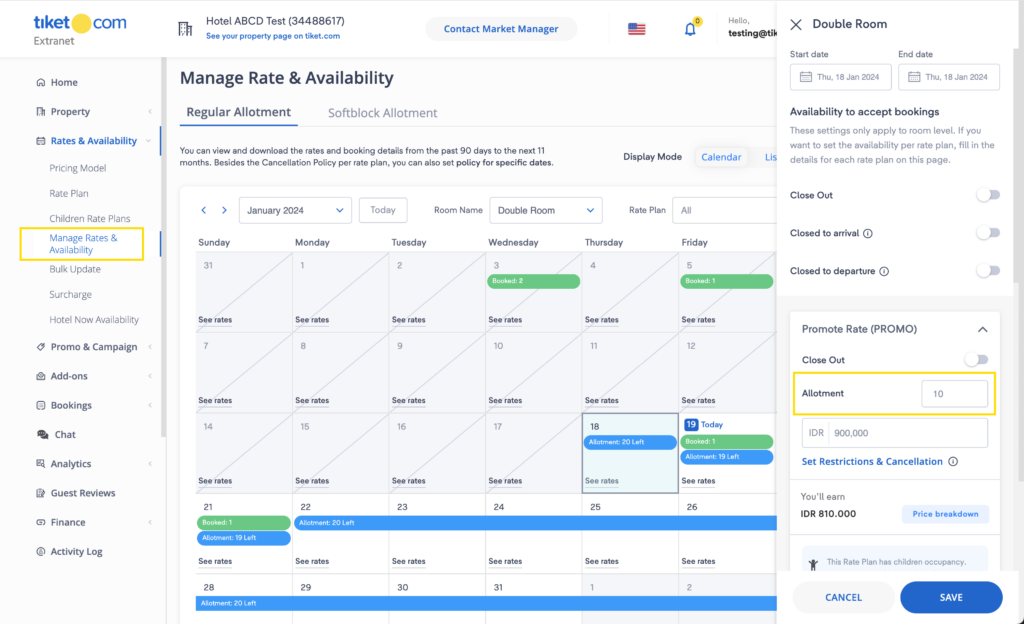
Adjust the number of available rooms in the allotment column and update the rates for each rate plan using the pop-up menu located on the right side of the screen
Click on the Save button to save changes
You can set different prices for every rate plan. Meanwhile, the room allotment will apply to all rate plans connected to the specific room type. For example, your property has one room type with 10 daily allotments, these allotments will be utilized when guests make bookings through any of the connected rate plans.
We strongly suggest you set your property’s rates and availability at least 6 months in advance, so that the guests can find your property on the search result page when they are searching for accommodation. Use the Bulk Update feature if you want to set rates and availability for multiple dates at once.
Additionally, we also want to remind you to set the same price with the price you offer on other OTAs. This helps prevent any price disparity issues and ensures competitive rates for tiket.com users.
If you are using DerbySoft or Shiji as a switcher, you also have the option to set an allotment for each rate plan on every room type. You can contact your Market Manager to activate this feature.
This tutorial was created based on the rates and availability settings process through the tix.tiket.com website’s desktop version.
After understanding how to manage rates and availability in general, you can also control the availability for each rate plan through the tiket.com Extranet. By setting different allotments to each rate plan, you can maximize your property revenue. This feature is available for properties that are using DerbySoft and Shiji as a switcher, all properties in the Hotel category, and Villas & Apt. properties with multiple units.
Follow the steps below to update your property availability on the rate plan level:
Click on the Rates & Availability menu and select Manage Rates & Availability
Select the room name you want to update
Choose the date you wish to update
Update the number of available rooms in the allotment column for each rate plan on the pop-up menu located on the right side of the screen
Click on the Save button to save changes
You can check the status, the number of booked allotments, and remaining allotments for each rate plan connected to the room through the color label on the same menu:
Green: booked allotments
Red: close-out status
Blue: remaining allotments available for booking
Grey: sold-out allotment
A bell icon will notify you when one or more rate plans are sold out. You can also access more detailed allotment information by hovering over the label. Allotment per rate plan will be updated once a guest makes a booking using the specific rate plan. Meanwhile, allotment per room will still be applied for properties joining the softblock program.
If you wish to enable allotment per rate plan level settings, you can contact your Market Manager to change your property inventory level type. Please note inventory level type changes will reset the property allotment to 0, so readjustments are necessary. The allotment per rate plan level feature is only available on the desktop version of the tix.tiket.com website and is not available on the Lignum app.
You can use the Bulk Update submenu under the Rates & Availability menu to change rates, allotments, and close-outs for multiple dates in bulk.
Here are the steps to do a bulk update:
Specify the start and end dates of the period you want to edit. You can also select specific days by checking the checkboxes for the desired days. For example, if you choose Saturday and Sunday, the changes will only apply to Saturdays and Sundays within the specified date range.
Select the section you want to update by clicking the rate, allotments, or close-out tab.
Choose the room type(s) you want to update from the drop-down menu, then click Apply.
To change prices: Select the rate plan and enter the new price in the price column. To change allotment: Enter the new quantity in the allotment column. To change close-out: Select the new availability status.
Click the Save Changes button to save the updates.
Close-out, close-to-departure, and close-to-arrival are booking restrictions commonly found in the hospitality industry.
Here are the meanings of these terms:
Close-out When you enable close-out, the rooms in your property are unavailable for booking on those specific dates.
Close-to-arrival When you enable close-to-arrival, the guests cannot make a reservation for your property with the specified date as the check-in date.
Close-to-departure When you enable the close-to-departure, the guests cannot make a reservation for your property with the specified date as the check-out date.
The close-out settings apply to the room level. If you enable close-out for a particular room type on specific dates, all rate plans connected to that room will not be available for booking.
Close-to-arrival and close-to-departure offer more flexible restrictions. You can enable close-to-arrival and close-to-departure based on room types and rate plans.
You can manage close-out through the Manage Rates & Availability submenu and use the Bulk Update submenu to enable close-out for multiple dates in bulk. Meanwhile, you can only set close-to-arrival and close-to-departure through the Manage Rates & Availability submenu.
A room rate is the price per night guests must pay when staying at your property. The displayed room rate is determined based on the applicable rate plan at your property. You can set the room rates in the Manage Rates & Availability submenu under the Rates & Availability menu.
A rate plan is a pricing arrangement that includes meal options, prices, cancellation policies, and restrictions. You need to create a rate plan before setting the room rates. You can create a new rate plan in the Rate Plan submenu under the Rates & Availability menu.
You can connect one rate plan to multiple rooms if the same meal options, prices, cancellation policies, and restrictions apply to those rooms.
If you have multiple rate plans at your property, one room can be connected to multiple rate plans. For example, a deluxe room can be connected to a rate plan with a non-refundable cancellation policy and another rate plan with a free cancellation policy with different room rates.
You can add a new rate plan or edit the existing rate plans through the Rate Plan submenu in the Rates & Availability menu.
A static rate plan is a pricing strategy where you set a fixed price for your property for a specific period of time, regardless of changes in occupancy, holiday seasons, or market trends. Now, you can use a static rate plan for your property on tiket.com. By using a static rate plan, you only need to set a net price you want to receive once and have more time to improve your service and give the best experience for your guests.
Here are some benefits of using a static rate plan:
Easier and more efficient property management Unlike the dynamic rate plan that constantly changes based on demand, a static rate plan can save you a lot of time and effort. You only need to update your allotment periodically, and Market Manager can help you set the best price for your property.
Stable revenue By setting a net price for your property, you can easily predict your total revenue. Additionally, our Market Manager will help you set up promotions and child rate plans to increase your property’s visibility without reducing your net price.
Extra visibility through cross-selling programs By adopting a static rate plan, your property will automatically be included in tiket.com’s cross-selling programs. These programs bundle your property with other tiket.com products, such as flight tickets and attractions. Joining cross-selling programs also will increase your visibility and maximize bookings.
A static rate plan is a good choice for property owners who want easy-to-manage room rates, stable revenue, and extra visibility through cross-selling programs. By using the static rate plan, you can save more time and effort, maximize your revenue, and get more bookings.
Contact your Market Manager today to activate the static rate plan and boost your property’s performance on tiket.com!
The rate model is the base for the pricing model that applies to your property. There are two available rate models on tiket.com, the Per-day Rate Model and Length-of-stay Rate Model.


 Bahasa Indonesia
 English
 日本語
日本語